
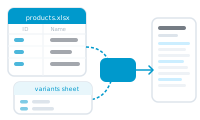
A secondary sheet holds data that repeats within a single record – the rows the master sheet can’t hold on its own.
Your master sheet gives each record one row. But real records often contain lists: a product with many specs, an order with many line items, a report with many readings. You can’t cram a list into one master row. Secondary sheets are where those lists live.
A secondary sheet is just another table in your Excel workbook, with many rows that belong to your master records – say, twenty spec rows that belong to five products. To tell DataMergeStudio which rows belong to which record, you link the two sheets with a data group – set up after import, not during it – matching a shared value (like a product’s SKU) on both sheets.
Once linked, a record can pull in all of its related rows at once – so a single product document can show its full spec table, and a single invoice can list every line item. This is exactly what InDesign’s built-in data merge can’t do.
Secondary sheets need an Excel file – a single CSV has only one table. If you’re working from CSV and need related rows, move your data into an .xlsx workbook with one sheet per table.
Learn how the link works: How Data Groups Link Master and Secondary Sheets.