
DataMergeStudio always runs with a license key — you enter it the first time you open the app. Depending on the tier the key is bound to, it grants a time-limited trial or a full subscription.
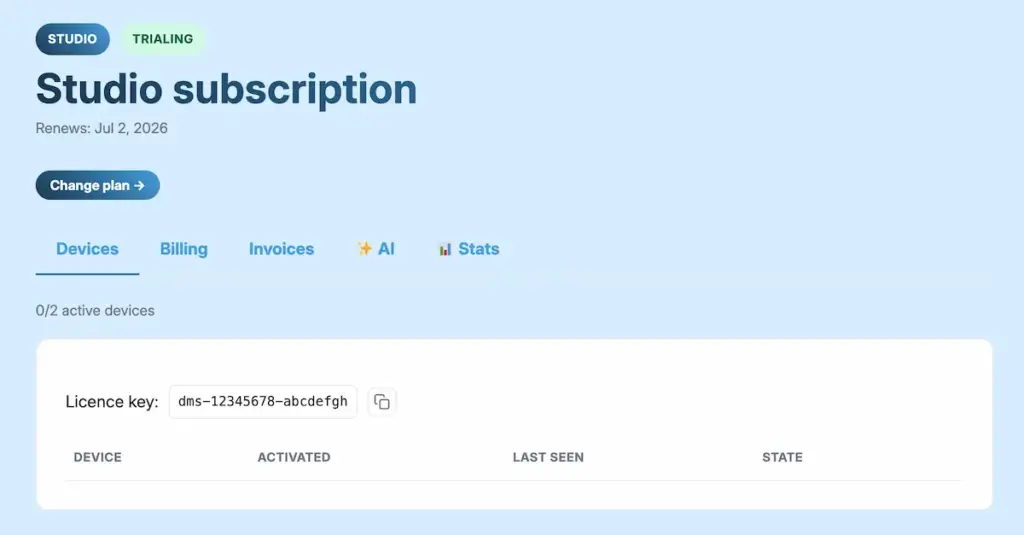
Your license key is in your account. Once you have a plan — a trial or a paid subscription — sign in at datamergestudio.com and copy the key shown with it.
You can reach the Activation screen in a few ways:
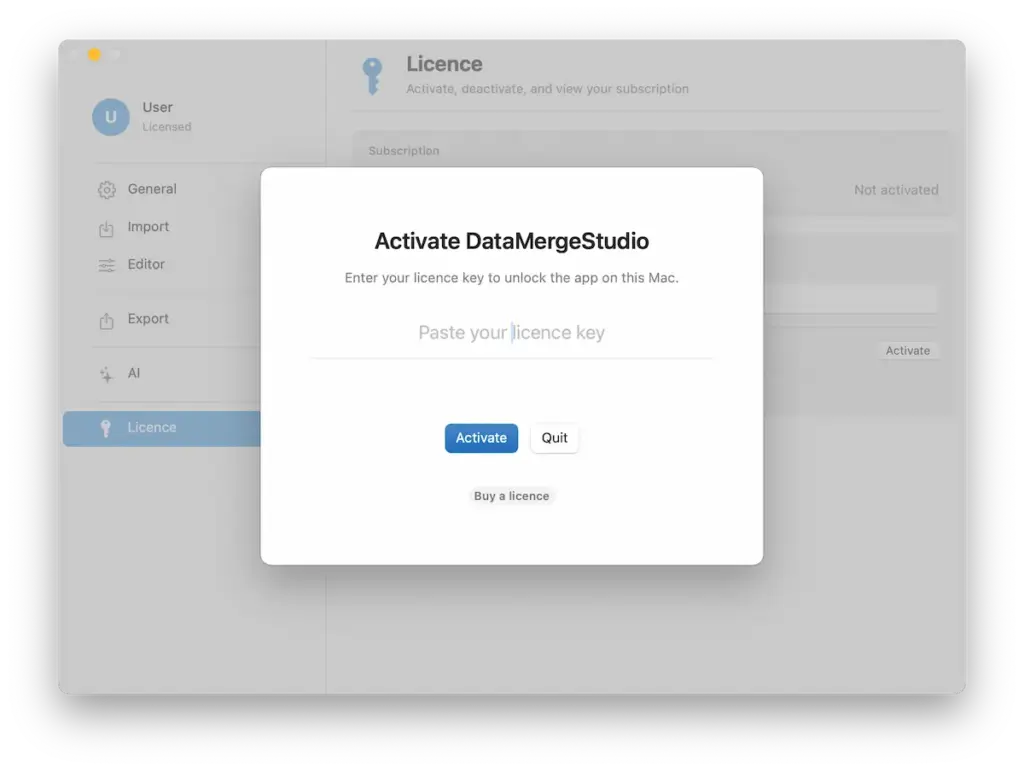
Paste your license key into the field and confirm. DataMergeStudio checks the key online, and once it’s accepted the app is fully unlocked.
Activation is tied to your subscription, so you don’t re-enter the key on every launch. DataMergeStudio does re-check the license online from time to time — the same way Adobe’s apps do — so go back online occasionally; if you’ve been offline too long, it asks you to reconnect. If you move to a new Mac or change your subscription, you activate again the same way.
Continue with Connecting DataMergeStudio to InDesign.