
There’s almost nothing to set up here – DataMergeStudio works with InDesign automatically. This page explains what that means and the one permission you need to grant.
DataMergeStudio drives InDesign to build your documents, and it handles the connection itself. When it needs InDesign – to open a layout or run a merge – it launches InDesign for you. If InDesign is already running, it simply uses the running copy.
So there’s no pairing step, no plugin to enable, and no port to configure. You work in DataMergeStudio, and InDesign comes along when it’s needed.
The first time DataMergeStudio launches InDesign, macOS asks whether to allow DataMergeStudio to control Adobe InDesign. This permission is required – without it, macOS blocks the connection and merges can’t run.
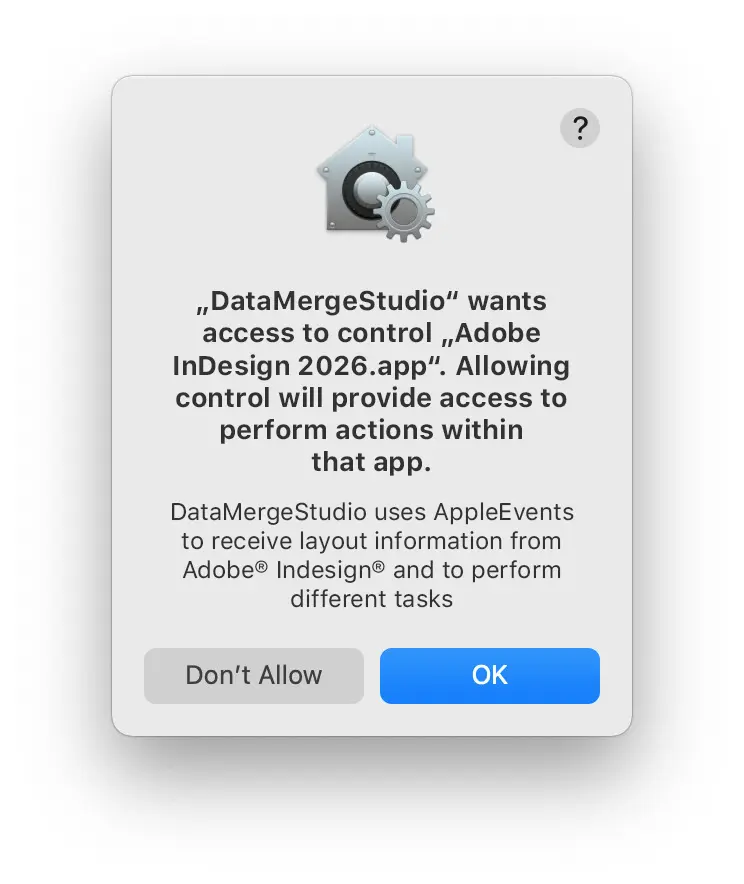
If you clicked Don’t Allow by mistake, turn it back on manually:
Step 2 – Open Apple menu → System Settings → Privacy & Security → Automation.
Step 3 – Find DataMergeStudio in the list and switch on Adobe InDesign beneath it.
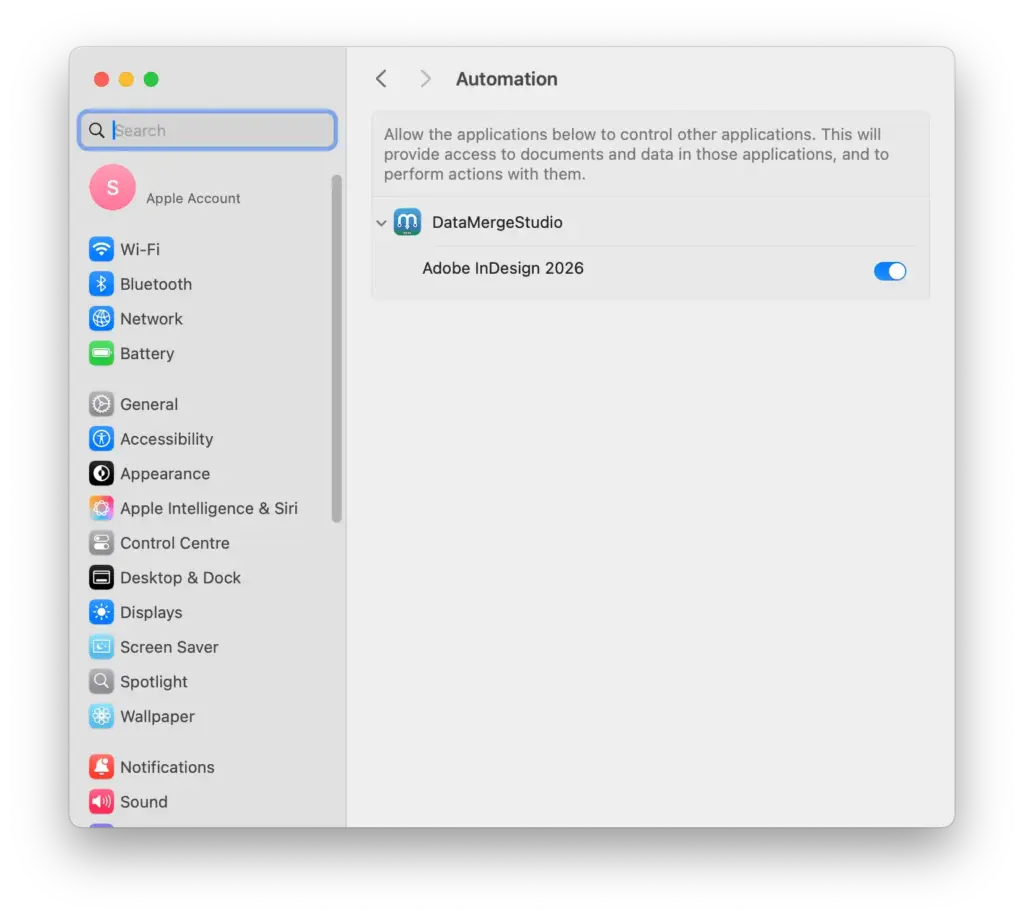
DataMergeStudio only appears in that Automation list after it has asked once — so if you don’t see it, launch a merge so the dialog appears.
Because DataMergeStudio takes control of InDesign during a merge, it’s best not to work in InDesign by hand at the same time. Let the merge finish, then go back to editing.
You’re set up. To see how a merge works from end to end, read How DataMergeStudio works.