
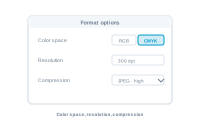
The technical options for an export depend on the filetype you chose – and they mirror InDesign’s own export settings for that type, exactly.
After you choose a filetype, its format options appear. Set them as you would for a one-off export in InDesign – the merge simply applies them to every document it produces.
📷 Screenshot [NEU]: the format options for the chosen filetype (e.g. PDF)
There’s no single fixed set of options. Export a PDF and you get InDesign’s PDF options; export a JPG and you get its JPG options; an EPS gives EPS options, and so on. Whatever InDesign offers for a given format, DataMergeStudio surfaces the same – so if you know the InDesign export dialog, you already know these.
Depending on the filetype, you’ll meet the usual settings: colour space, resolution, and compression for raster formats; preset and quality settings for PDF; and the format-specific options InDesign exposes for each.
The guidance is the same as in InDesign: high resolution and print colour for a printer; lighter and smaller for screen or email. Because the options are identical to InDesign’s, your existing habits carry straight over.
Name your files and choose which records to export: Naming your files