
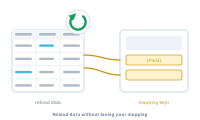
Your data changes – prices update, a few rows get added, a typo is fixed. You don’t rebuild anything: reload the datasource and your whole setup carries over.
A datasource stays linked to your project. When the underlying file changes, reload it – DataMergeStudio reads the new contents while keeping your mapping, your nodes, and your settings exactly as they were.
📷 Screenshot [NEU]: the reload datasource command
Most edits – and even an adjusted layout – don’t break your connections, thanks to resilient mapping. When a column genuinely can’t be matched (usually because it was renamed), DataMergeStudio doesn’t fail silently: it asks you and opens a screen where you re-assign that field to the right column. You fix only what actually changed; the rest of your mapping stays put.
📷 Screenshot [NEU]: the re-assign-field screen shown after a renamed or missing column
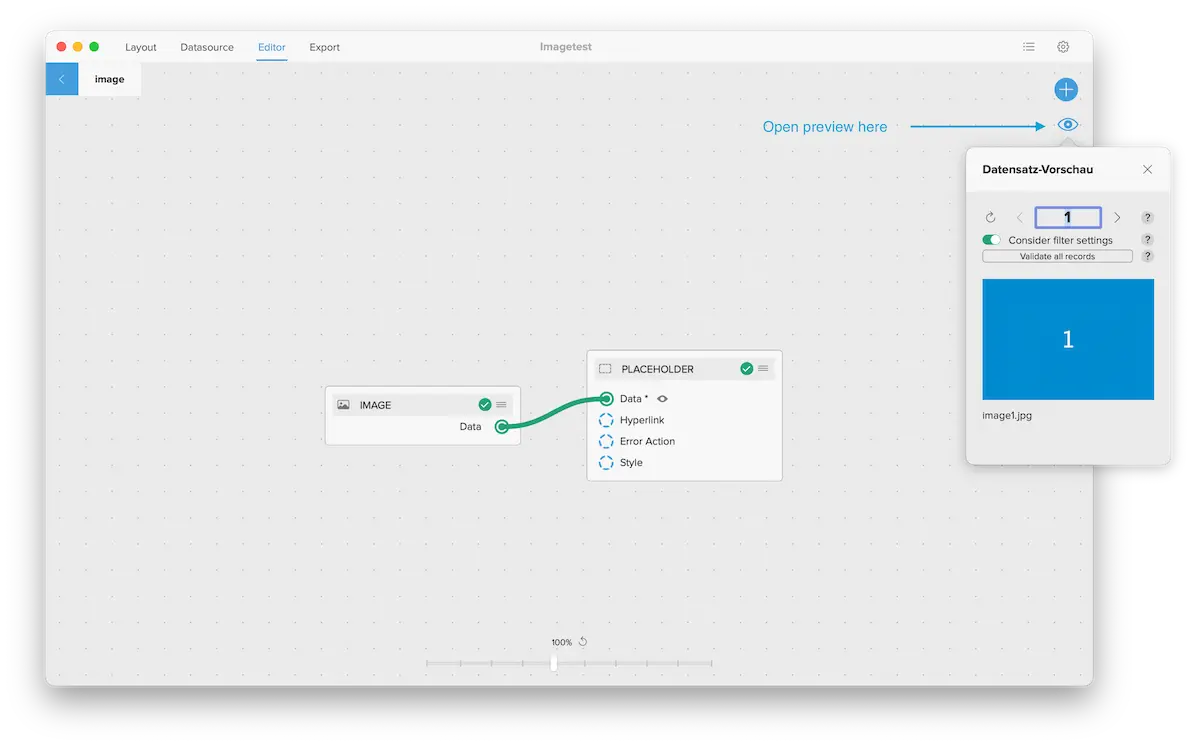
Good habit: reload after every change to the source file, then preview a record before a full run – a quick check that the new data lands where you expect.
See how DataMergeStudio counts your records: Record counts