
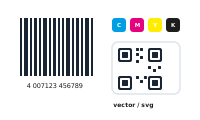
You want a QR code or barcode on every record, generated from your data.
The placeholder must be the only content of its frame – for both QR codes and barcodes. For QR codes there’s one extra rule: the frame must be square (height = width).
📷 Screenshot [NEU]: the InDesign frame with only the placeholder (square for a QR code)
On the field, click the question mark and choose Replace with QR-Code or Replace with Barcode. Then click Edit to open the editor.
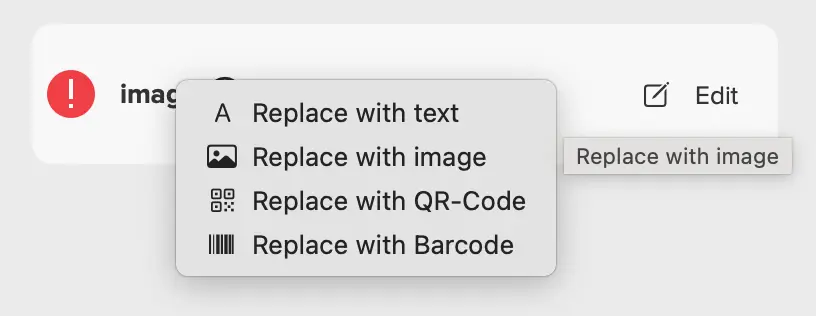
From here the steps differ slightly – follow the barcode path or the QR code path.
A Barcode central node has a single data input.
📷 Screenshot [NEU]: the barcode type selector in the Barcode central node’s properties
Then continue at Preview and export below.
A QR-Code central node is dynamic – its inputs depend on the QR type you choose.
📷 Screenshot [NEU]: the QR type selector in the QR-Code central node’s properties
Then continue at Preview and export below.
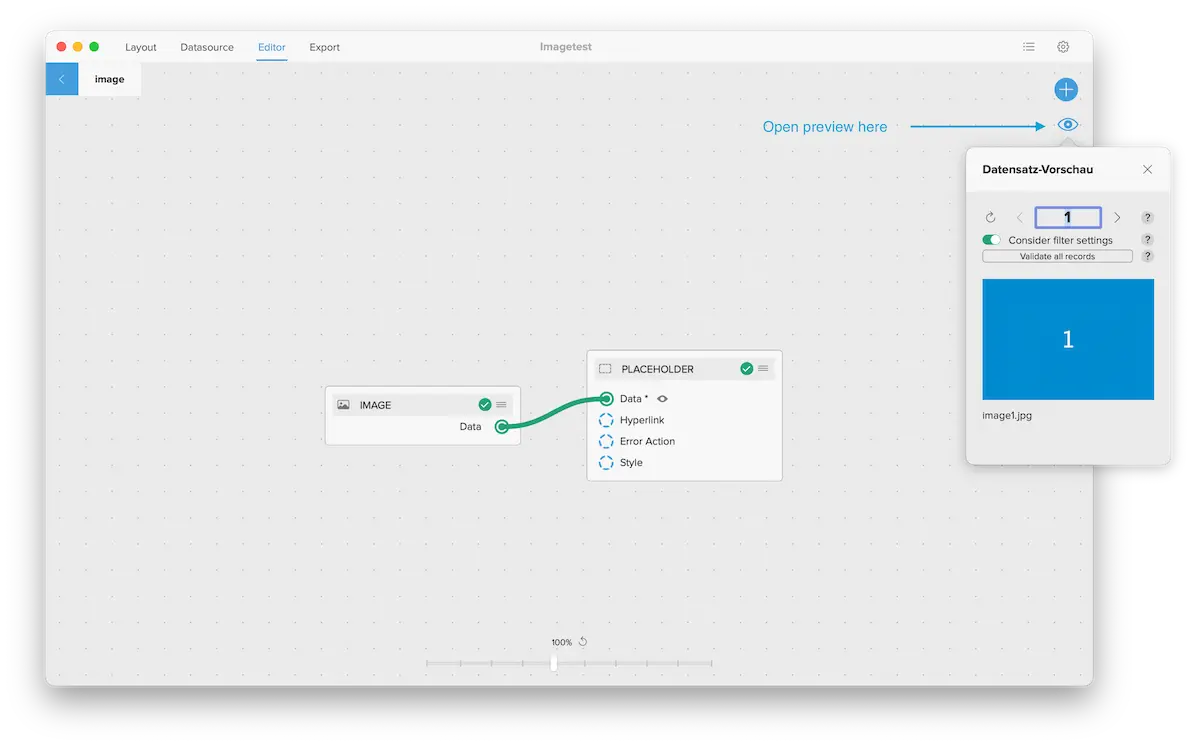
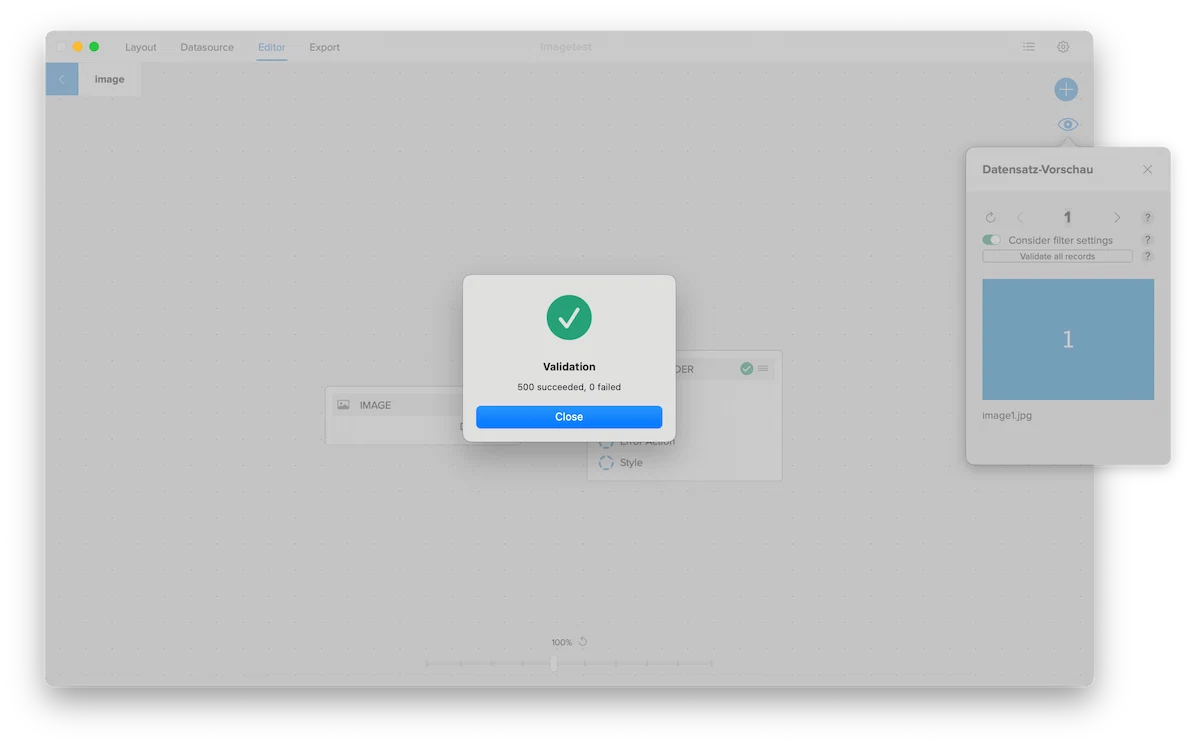
Open the Preview (the eye icon, top right) to check the result, then click Validate all records (the button in the bottom-right corner of the workspace), and export as usual. Each record gets its own code.
For the full list of barcode types DataMergeStudio can produce, see All Supported Barcode Formats in the Reference section.
A scannable code per record – product links, ticket IDs, SKUs – straight from your data.