
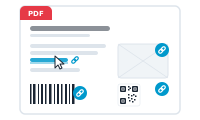
Turn data into clickable hyperlinks

Clickable hyperlinks built from your data

You want clickable links in the output – a product URL, a "read more", a landing page – one per record.

Before you start

  • A column in your data holding the link target (the URL).
  • Your layout open, with the text or field that should become the link.

In the Editor, add the Hyperlink node and choose the column that holds the link target (the URL).

📷 Screenshot [NEU]: the Hyperlink node with the URL column selected

Step 2 – Connect it to the central node

Drag from the Hyperlink node to the Hyperlink input socket on the central node – the one alongside Data, Error Action, and Style. No special frame preparation is needed; the link is applied automatically.

📷 Screenshot [NEU]: the Hyperlink node connected to the central node’s Hyperlink socket

In the Hyperlink node’s properties panel, control how the link behaves and looks:

  • Shared Hyperlink destination – useful when several hyperlinks point at the same target and you intend to keep working on the InDesign layout. On: a single target is created and shared across those links. Off: a separate target is created for each link.
  • Highlight – the highlight effect of the link.
  • PDF Display – the kind of frame around the link. Choosing Visible Rectangle unlocks the three styling options below.
  • Width – the rectangle’s thickness: thin, medium, or thick.
  • Format – the rectangle’s style: solid or dashed.
  • Color – the rectangle’s RGB color. All RGB swatches from your document (and only RGB) are imported automatically and appear next to Document default.

📷 Screenshot [NEU]: the Hyperlink node properties with the link options

Step 4 – Export as Interactive PDF

Open Export → Format and choose Interactive PDF so the links stay clickable on screen, then export as usual.

📷 Screenshot [NEU]: the Export Format set to Interactive PDF

Result

Each document carries its own working link – live in the exported interactive PDF.

Not found what you're looking for?

How-To Guides · Last updated 1 month ago

Copyright ToolboxCode UG