
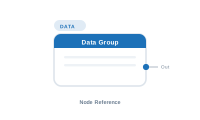
Lede. Selects a configured data group and forwards its matching secondary-sheet rows to whatever consumes them downstream.
Group: Data · Available in: Text / Image / QR / Barcode placeholders, Table · Central node: No
Add Node ▸ Data ▸ Data Group
The actual data-group definitions (which two sheets, how rows match) live in Data ▸ Data Groups. This node only selects one of them.
The node has no inputs. Pick a previously configured data group in its settings panel; on evaluation it asks the data group for the rows that match the current master record and emits them as a single value downstream.
What happens next depends on what’s wired to its Out:
Data Group socket: the table renders one row per match.Data Group socket: the placeholder evaluates its Content once per match and joins the results.In both cases the upstream Data Text / Static Text / Formatter nodes in the same workspace switch their column lookup to the data group’s secondary sheet automatically. You don’t have to configure context switching anywhere – the wiring is the switch.
| Direction | Name | What it does | What you can connect |
|---|---|---|---|
| Output | Out |
The matching rows for the current master record. | Table node’s Data Group input, Repeater node’s Data Group input. |
The node has no input sockets.
| Setting | What it does |
|---|---|
| Data group popup | Select one of the data groups configured in Data ▸ Data Groups. |
| Manage Data Groups… | Opens the data-group editor (same as the Data section) without leaving the canvas. |
| Help (?) | Opens the explanation popover. |
A data group itself is configured separately from this node. Match modes available there:
Scenario. A product catalogue page lists the features of the current product.
Pre-requisite. A data group Product features exists in Data ▸ Data Groups, configured as Explicit relationship: master Products.ID ↔ secondary Features.ProductID.
Wiring.
[Data Group: "Product features"] → [Repeater] → [Placeholder.Repeater]
                                                          ▲
                              [Data Text: FeatureLabel] ──┘  Placeholder.Content
Result. The placeholder renders a delimiter-joined list of all feature labels belonging to the current product.
Data ▸ Data Groups. There is no way to define a brand-new data group from this node alone (the "Manage…" button opens the same editor as the Data section).Out must be wired to the Table or Repeater for the upstream Data Text nodes to switch context. Confirm both wires.Data ▸ Data Groups and verify the relationship columns and filters.Out.📷 Screenshot [NEU]: Data Group settings panel with popup expanded
📷 Screenshot [NEU]: Data Groups editor (Data ▸ Data Groups)