
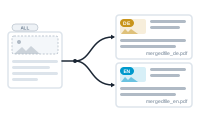
Variants let you produce several versions of the same merge in one go – the same project, output in more than one form. Languages are the classic case: a single run that yields a German PDF and an English one.
Nearly every node has a Variants settings area, with a dropdown and a Manage Variants button. Manage Variants opens a window where you create, edit, and delete the variants for your project. Each variant has:
de → mergedfile_de.pdf);The same Manage Variants list also appears in the Export area, so you can manage variants from either place.
In each node’s Variants dropdown, All Variants is selected by default. A node set to All Variants runs in every variant – it’s the shared baseline. You only assign a node to a specific variant when it should differ between them.
You assign nodes to variants in the editor (next article), and the variants are produced at export – a single run can output every variant, each with its own file suffix. (See Exporting Multiple Variants in One Run.)
Assign nodes to variants and learn the connection rules: Tagging Nodes for Variant Runs