
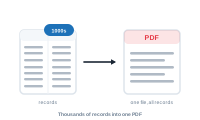
Merging thousands of records into one giant document is where InDesign slows to a crawl. There’s a much faster, more reliable way – split the run into smaller documents and let DataMergeStudio assemble them.
Produce thousands of records into print-ready output without InDesign running out of memory, stalling, or failing partway.
InDesign builds the entire merged document in memory. The bigger it gets, the more it consumes – easily into the gigabytes – and the slower and more fragile the process becomes. Splitting it up by hand and stitching the pieces back together is just as painful, and you lose continuous pagination along the way.
DataMergeStudio does the splitting for you in a single run: it produces a series of smaller InDesign documents, assembles them into an InDesign book with continuous page numbering, and – if you want – exports one PDF from that book. It’s start-and-forget, and far faster than one enormous merge because each piece stays small enough for InDesign to handle comfortably.
Map your placeholders as usual and confirm each one is valid (the green check mark).
📷 Screenshot [NEU]: the project with all placeholders valid
Open Export → Merge Mode, choose Individual, and use Set size to control how many records go into each document. The goal is to keep each document small – aim for no more than ~80 pages per document.
Set size counts records, so translate that into pages based on your layout:
Watch the Export Summary – it shows the resulting pages per document, so you can dial Set size in until each document lands at a comfortable size.
📷 Screenshot [NEU]: Merge Mode (Individual + Set size) with the Export Summary showing pages per document
In the export settings, set these toggles:
With this combination, DataMergeStudio creates the individual InDesign files, assembles them into a book, and produces one single PDF from that book – with continuous pagination across the whole run.
📷 Screenshot [NEU]: the export toggles – PDF, keep InDesign, create book, export PDF from book only
Start the export and let it run. It still takes time on thousands of records, but it’s the most efficient route InDesign’s data merge allows – and it won’t choke on a single oversized document.
Thousands of records produced reliably and far faster than one giant merge: individual InDesign files, assembled into a book with clean continuous pagination, and a single combined PDF at the end.