
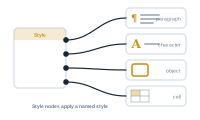
Style nodes apply your InDesign styles as part of the merge. They’re how the right look lands on the right content, automatically, for every record.
They mirror InDesign’s style types:
Because the styles themselves live in InDesign, a style node just points at one – change the style in InDesign and every merged document follows.
Style nodes carry style information, not merge data. They feed the style input of a node, so styling and content stay cleanly separate: the value being placed is one thing, the look applied to it is another.
A style node doesn’t output data, but it has a data input that acts as a trigger. Leave it unconnected and the style is applied always. Connect a data node to it and the style is applied only when data flows through that input – the data itself isn’t placed or used for anything else, it’s purely the trigger. That’s how you make styling conditional: feed the trigger from something that only produces a value when your condition is met, and the style follows along.
Record lengths vary – one product name is short, the next overflows its frame. The text style node can resize the text so it always fits, set from a dropdown with two options:
Either way the text is adjusted per record, so every document stays within its frame automatically – no overset text, no manual tweaking.
Handle the gaps and surprises in real data: The Action Nodes