
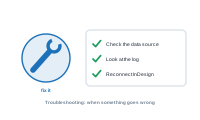
When a merge doesn’t go to plan, it’s usually one of a handful of causes. Here are the common ones and how to clear them.
DataMergeStudio drives InDesign, which needs macOS Automation permission. If the merge can’t start InDesign, approve the permission prompt, or enable it under System Settings → Privacy & Security → Automation → DataMergeStudio → Adobe InDesign. See Connecting to InDesign.
If the layout has missing image links or fonts, InDesign reports an error and the merge stops. Fix the links and install the fonts, then re-run.
Cloud fonts loading on demand can slow merges or cause errors. Activate the fonts so they’re always available, rather than relying on on-demand download.
Check the Image data node: is the column a name (with the right folder chosen), a path, or a URL? If a folder can’t be read, grant DataMergeStudio access to it.
Text longer than its frame becomes overset. After a run, the Overset Report lists the affected records – widen the frame, shorten the text (a truncation in the format node), or adjust styling.
Missing data shows up in the Log. Handle the gap gracefully with an action node so it stops being an error.
For large jobs: scale images down, move non-merged decoration to master pages, and use locally installed fonts. These make a big difference at volume.
Still stuck? See the FAQ.